How to configure Sentinel Keys
When you have multiple licenses — for example, one for production and one for testing — USoft components detect all available sentinel keys and combine them by default. This guide shows how to configure each component to use a specific key instead.
Prerequisites
- USoft is installed. See Installing USoft Developer.
- You have the sentinel key identifier you want to use.
Configure Applications and Batch
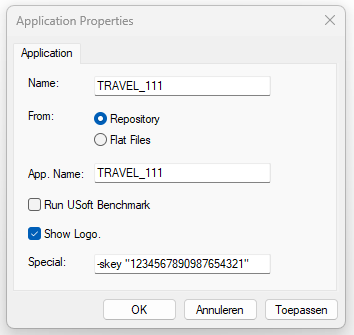
USD applications and the Batchrunner accept a -skey startup parameter to specify the sentinel key.
You can also configure this in the Binder:
Configure Rules Services
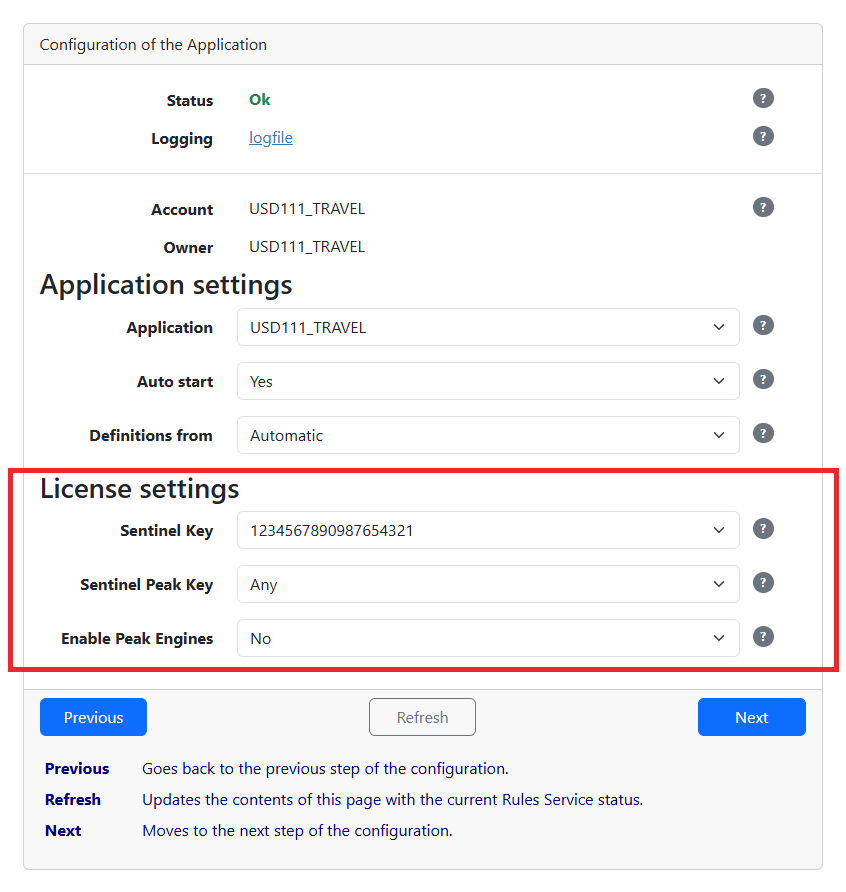
In the Rules Service configuration, specify sentinel keys on the second screen. Unlike applications, there are two key fields.
| Setting | Explanation |
|---|---|
| Sentinel Key | The main sentinel key to use in the Rules Service. |
| Sentinel Peak Key | The sentinel key for Peak Engines. Peak Engine licenses are cloud-based and held in a separate sentinel key. |
| Enable Peak Engines | Enables Peak Engines for this Rules Service if your license includes them. Even if your license allows it, Peak Engines are not used unless this is set to Yes. If your license does not include Peak Engines, this setting is inactive and permanently set to No. |